
Common WordPress Errors (And How To Fix Them)
Common WordPress Errors – WordPress is one of the most popular website platforms in the world, powering millions of sites. However, as with any software, WordPress users sometimes encounter errors that can disrupt their website’s performance. Whether you’re a seasoned WordPress user or a beginner, knowing how to troubleshoot common issues is crucial to maintaining a smooth-running site.
In this blog, we’ll cover 18 common WordPress errors and provide you with simple solutions to fix them.
1. White Screen of Death (WSOD)
Error: A blank screen with no error message, also known as the White Screen of Death, often leaves users stumped.
How To Fix It:
- Disable Plugins: Access your site via FTP or cPanel, navigate to the
wp-contentfolder, and rename thepluginsfolder toplugins-oldto disable all plugins. If the site returns, enable plugins one by one to identify the culprit. - Switch Themes: Rename the active theme folder to disable it and force WordPress to revert to the default theme.
- Increase PHP Memory Limit: Increase the memory by adding the following line to the
wp-config.phpfile:
2. Error Establishing Database Connection
Error: WordPress is unable to connect to the database.
How To Fix It:
- Check Database Credentials: Ensure your
wp-config.phpfile has the correct database name, username, and password. - Repair Database: Add the following line to
wp-config.php:Then visit
http://yourwebsite.com/wp-admin/maint/repair.phpto repair the database.
3. 404 Not Found Error
Error: The page or post you are trying to access returns a 404 error.
How To Fix It:
- Flush Permalinks: Go to Settings > Permalinks and click “Save Changes” without making any changes. This resets your URL structure.
- Check .htaccess File: Ensure your
.htaccessfile is configured correctly. You can regenerate it by resetting permalinks as mentioned above.
4. Internal Server Error (500 Error)
Error: A generic error that doesn’t provide specifics, but causes the site to break.
How To Fix It:
- Increase PHP Memory Limit: As mentioned for the White Screen of Death, increase the PHP memory limit.
- Check .htaccess File: A corrupt
.htaccessfile can trigger a 500 error. Rename it to.htaccess_oldand refresh your site. - Deactivate Plugins: Sometimes, a plugin can conflict and cause this issue. Disable them one by one.
5. Connection Timed Out
Error: The server takes too long to respond, often due to heavy server load.
How To Fix It:
- Increase PHP Limits: Add or adjust the following in the
wp-config.phpfile: - Deactivate Plugins & Themes: Try disabling unnecessary plugins or switching to a default theme.
6. 403 Forbidden Error
Error: You don’t have permission to access the page.
How To Fix It:
- Check File Permissions: Ensure the file permissions for your WordPress files are correctly set. Files should have 644 permissions, and directories should have 755.
- Deactivate Security Plugins: If you’re using security plugins, temporarily deactivate them to see if they are causing the issue.
7. Maintenance Mode Error
Error: WordPress gets stuck in maintenance mode after an update.
How To Fix It:
- Delete the
.maintenanceFile: Via FTP or cPanel, check the root directory for a file named.maintenanceand delete it.
8. Missing a Temporary Folder Error
Error: WordPress can’t find the temporary folder to store files during updates.
How To Fix It:
- Update
php.ini: You can resolve this by adding the following line to yourphp.inifile: - Contact Hosting Provider: If you’re unsure where the temp folder is, your hosting provider can help you fix this issue.
9. The Uploaded File Exceeds the Upload Max Filesize Directive
Error: You cannot upload large files because WordPress is restricted by server limits.
How To Fix It:
- Increase File Upload Limit: Add the following lines to your
wp-config.phpor.htaccessfile: - Update
php.ini: Alternatively, you can add the following to yourphp.inifile:
10. Login Page Redirects
Error: You can’t log into your WordPress dashboard due to an endless login loop.
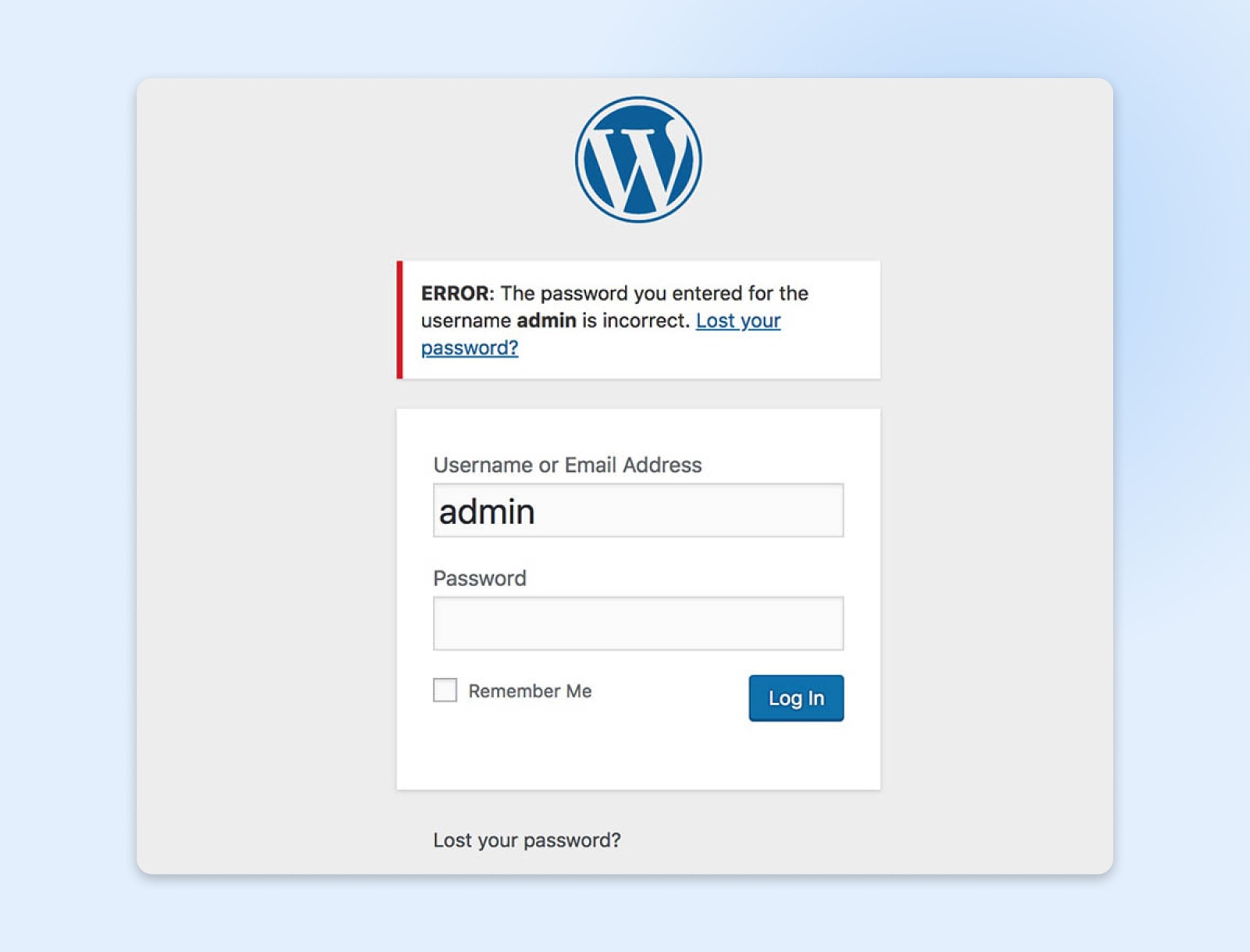
How To Fix It:
- Clear Browser Cache and Cookies: A quick fix is to clear your browser’s cache and cookies.
- Deactivate Plugins: If the issue is caused by a plugin, try deactivating all plugins via FTP.
- Change Site URL: Update your WordPress and Site URL in the
wp-config.phpfile:
11. Too Many Redirects
Error: Your browser keeps being redirected between URLs.
How To Fix It:
- Check Site URL Settings: Ensure the correct URLs are set in Settings > General.
- Clear Cache and Cookies: Clear your browser cache or try using an incognito window.
- Deactivate Plugins: A plugin could be causing the redirects. Try deactivating them one by one.
12. Postmaxsize Error
Error: The file you are trying to upload exceeds the size limit set by WordPress.
How To Fix It:
- Increase Post Max Size: Modify your
php.inior.htaccessfile to allow larger uploads:
13. Invalid JSON Error
Error: This error usually occurs during the WordPress REST API calls.
How To Fix It:
- Disable Plugins: One of your plugins could be interfering with the API. Disable all plugins to see if it resolves the issue.
- Check for SSL Issues: If you’re using HTTPS, ensure your site’s SSL certificate is correctly configured.
14. Image Upload Issues
Error: Unable to upload images to the media library.
How To Fix It:
- Check File Permissions: Ensure the
wp-content/uploadsfolder has the correct permissions (755 for folders, 644 for files). - Increase PHP Limits: Modify your
php.inito allow larger file uploads.
15. Error 502 Bad Gateway
Error: A server communication error that results in a 502 status code.
How To Fix It:
- Deactivate Plugins: Disable plugins via FTP or cPanel to check for conflicts.
- Check Server Logs: Your hosting provider’s server logs may provide further insight into the issue.
16. WordPress Memory Exhausted Error
Error: WordPress reports that you’ve exhausted your PHP memory limit.
How To Fix It:
- Increase PHP Memory Limit: Add the following to your
wp-config.php:
17. Cannot Modify Header Information
Error: This occurs when WordPress is unable to send proper HTTP headers.
How To Fix It:
- Check for Extra Spaces in
wp-config.phpor Themes/Plugins: Ensure no extra spaces exist before<?phpor after?>in your files.
18. Dashboard Login Hangs
Error: The dashboard login page gets stuck or doesn’t load completely.
How To Fix It:
- Clear Browser Cache: This simple fix often resolves the issue.
- Deactivate Plugins: Sometimes, a plugin causes the page to hang. Disable plugins and check if the issue resolves.
Conclusion
WordPress is powerful, but errors are inevitable. The key to troubleshooting is understanding the root cause of each issue and knowing where to look for solutions. By following the steps outlined above, you can fix many of the most common WordPress errors without needing to call a developer.
If you encounter persistent issues that you can’t resolve on your own, consider reaching out to your hosting provider for assistance or consulting with a WordPress developer.