
How to install Plesk on Windows Server?
Installing Plesk on a Windows VPS involves several steps. Here’s a general guide to help you through the process:
- Choose a Windows VPS Provider: First, select a Windows VPS provider that supports Plesk installation. Ensure that the VPS meets the minimum system requirements for running Plesk.
- Connect to Your Windows VPS: Use Remote Desktop Protocol (RDP) to connect to your Windows VPS. You’ll need the IP address, username, and password provided by your VPS provider.
- Download Plesk Installer: Open a web browser on your Windows VPS and navigate to the Plesk website. Download the Plesk Installer for Windows.
- Run the Plesk Installer: Once the installer is downloaded, run it on your Windows VPS. Follow the on-screen instructions to begin the installation process.
- Choose Installation Options: During the installation, you’ll be prompted to select installation options such as the edition of Plesk (Web Admin Edition, Web Pro Edition, or Web Host Edition), components to install, and the installation path.
- Enter License Key (Optional): If you have a Plesk license key, enter it when prompted. If not, you can proceed with the trial version.
- Complete the Installation: Once you’ve selected the installation options, the installer will begin installing Plesk and its components on your Windows VPS. This process may take some time depending on your server’s resources and internet connection speed.
- Access Plesk: After the installation is complete, you can access the Plesk control panel by opening a web browser and entering the URL provided during the installation process (typically https://your_server_ip:8443). Log in with the username and password you created during the installation.
- Configure Plesk: Once logged in, you can configure Plesk settings, create websites, set up domains, and manage your Windows VPS hosting environment using the Plesk control panel.
- Secure Your Plesk Installation: Make sure to follow best practices for securing your Plesk installation, such as regularly updating Plesk and your server’s operating system, enabling firewall settings, and implementing strong passwords.
Following these steps should help you install Plesk on your Windows VPS successfully. If you encounter any difficulties during the installation process, refer to the Plesk documentation or contact Plesk support for assistance.
How to install Plesk on Windows Server?
Step 1: Log in with RDP into Windows Server 2019
Connect to your server with the login credentials.
Step 2: Downloading Plesk Installer
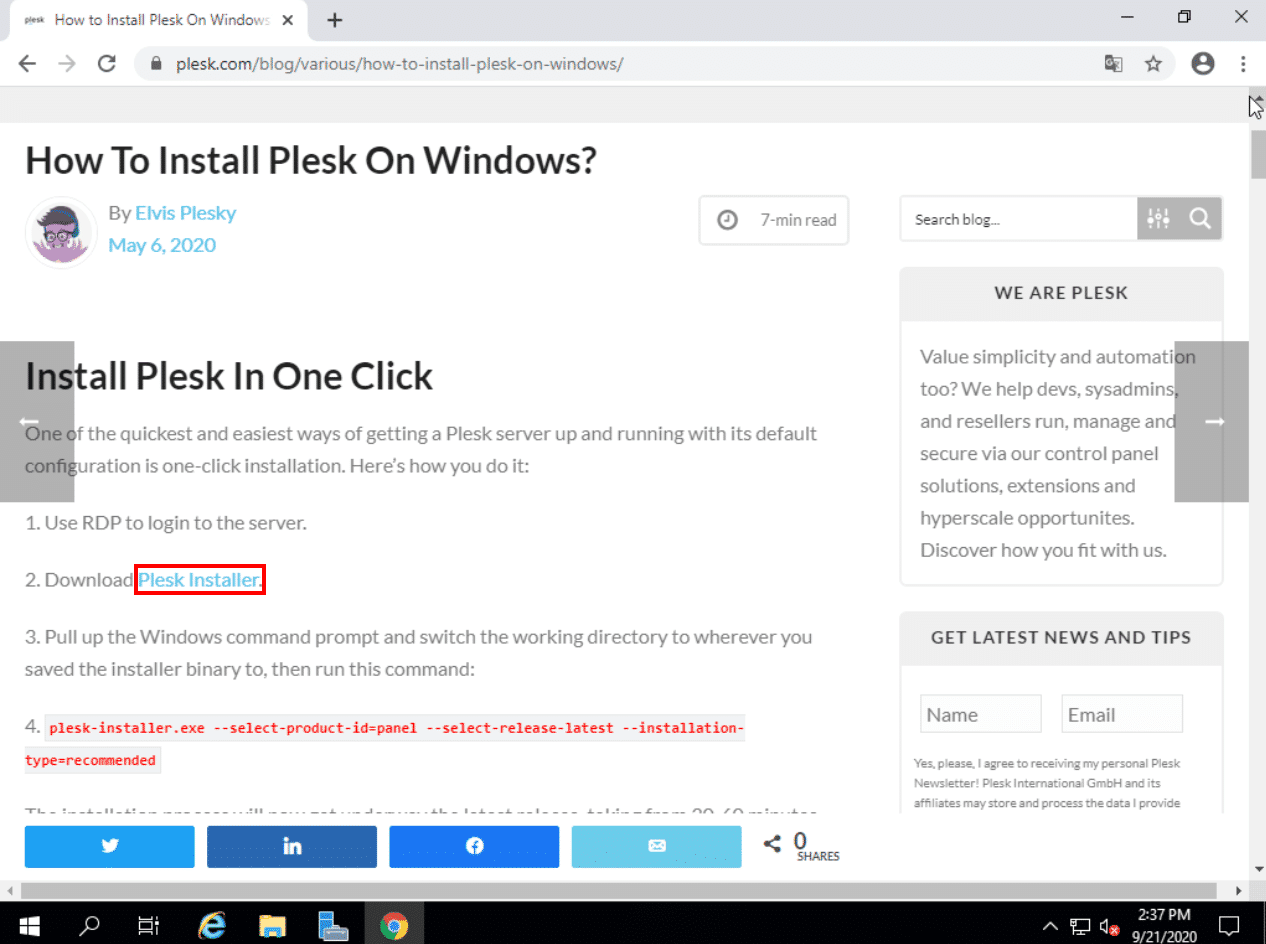
Go to https://www.plesk.com/blog/various/how-to-install-plesk-on-windows/ and click on Plesk Installer
.
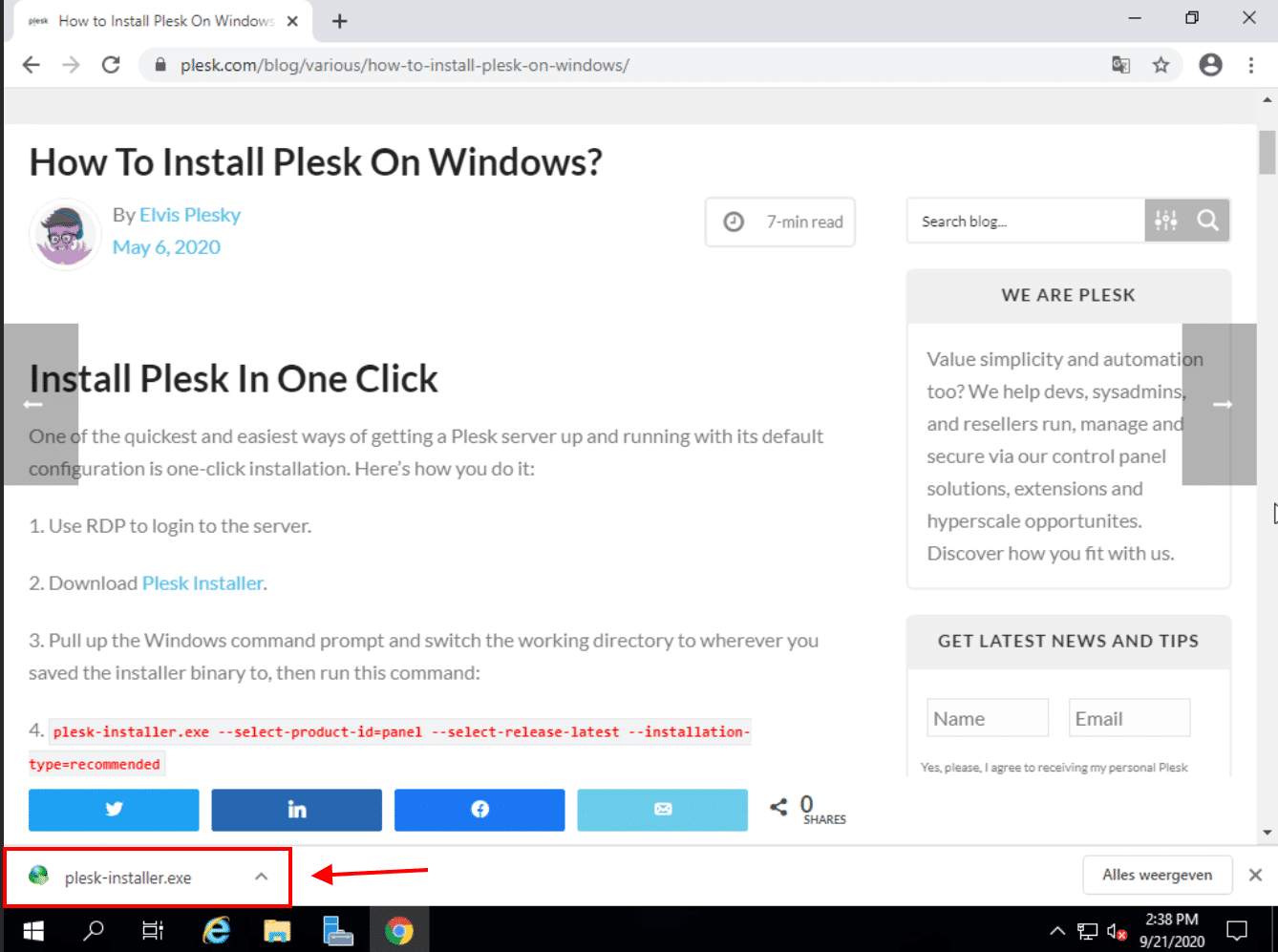
When the download is done, click on it.
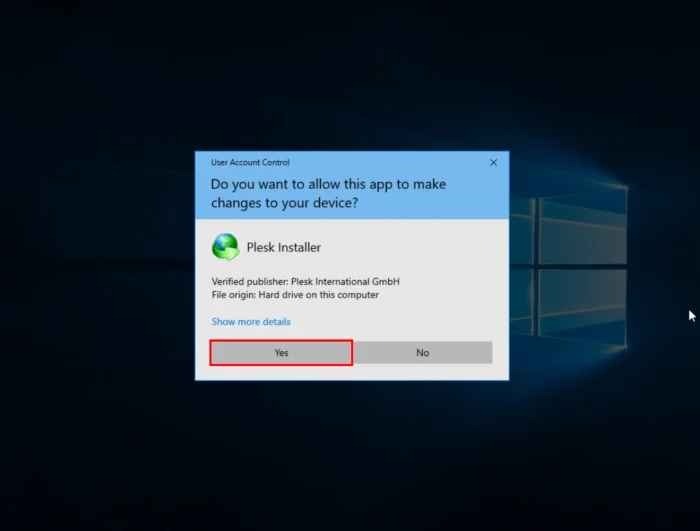
This window will pop-up. Click on “Yes” to give the app permission to make changes on your device.
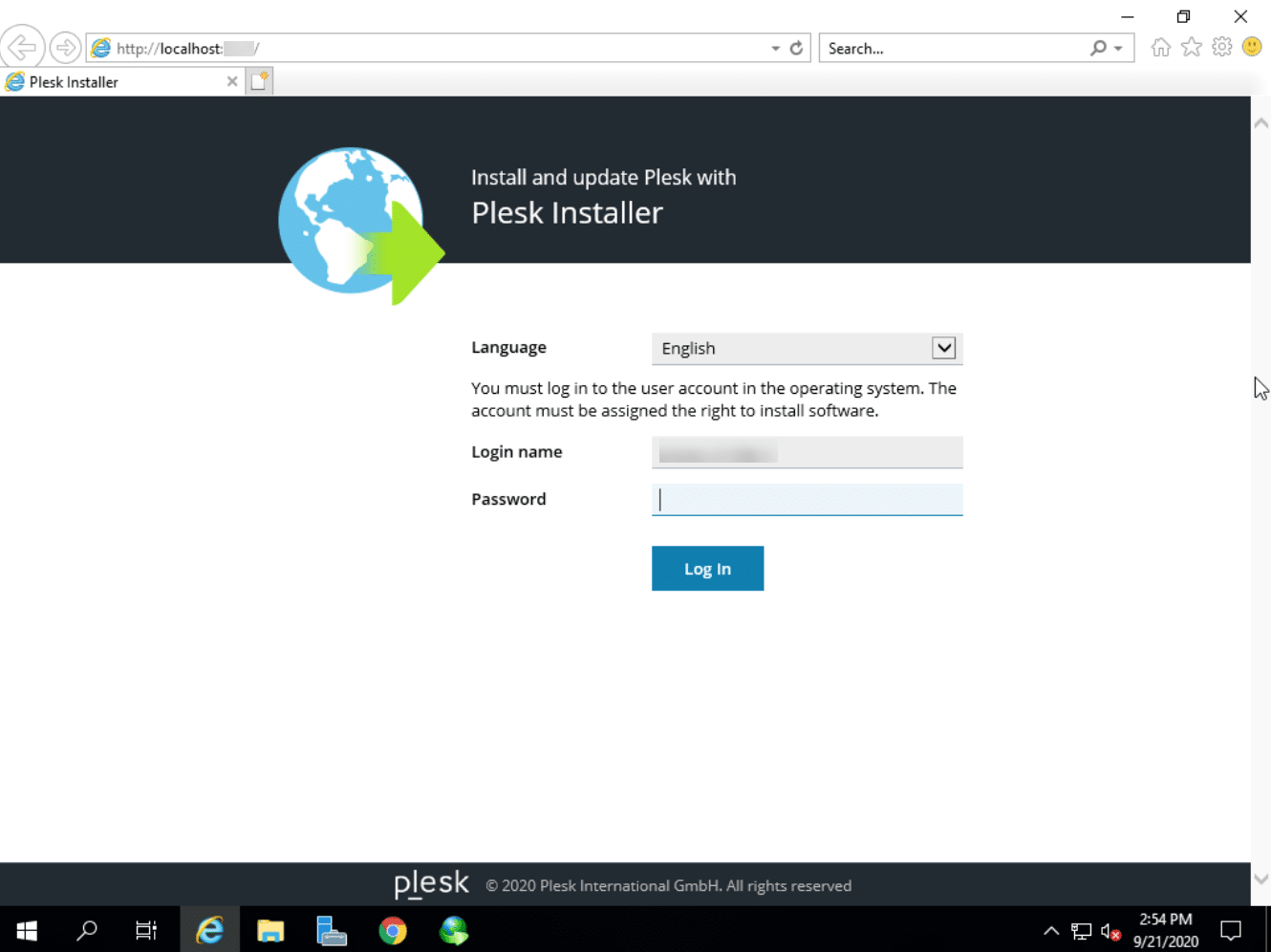
Step 3: Plesk Installer Login
You will see this screen. Insert your password and click Log In.
Click at the top left on Install or Update Product.
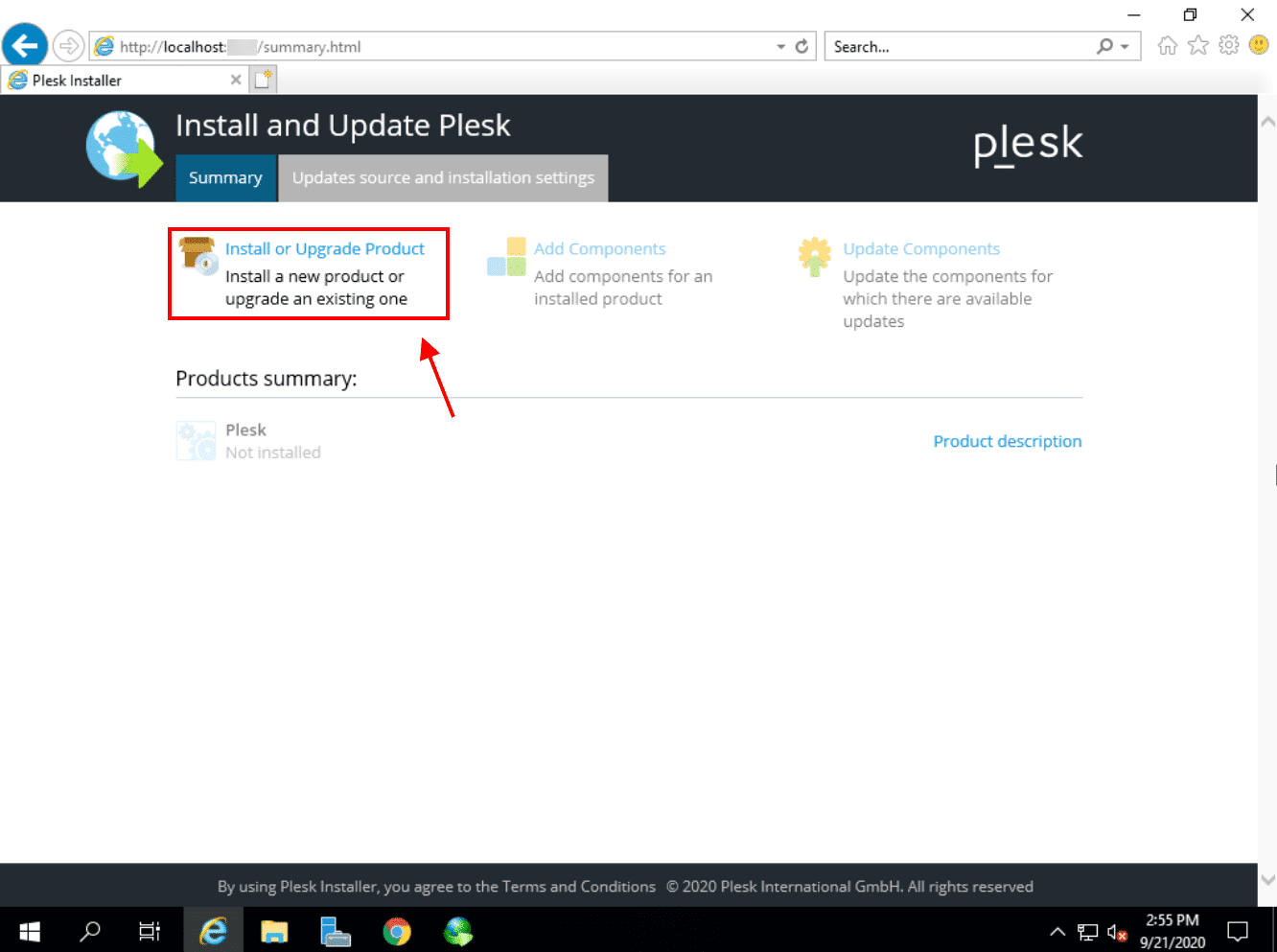
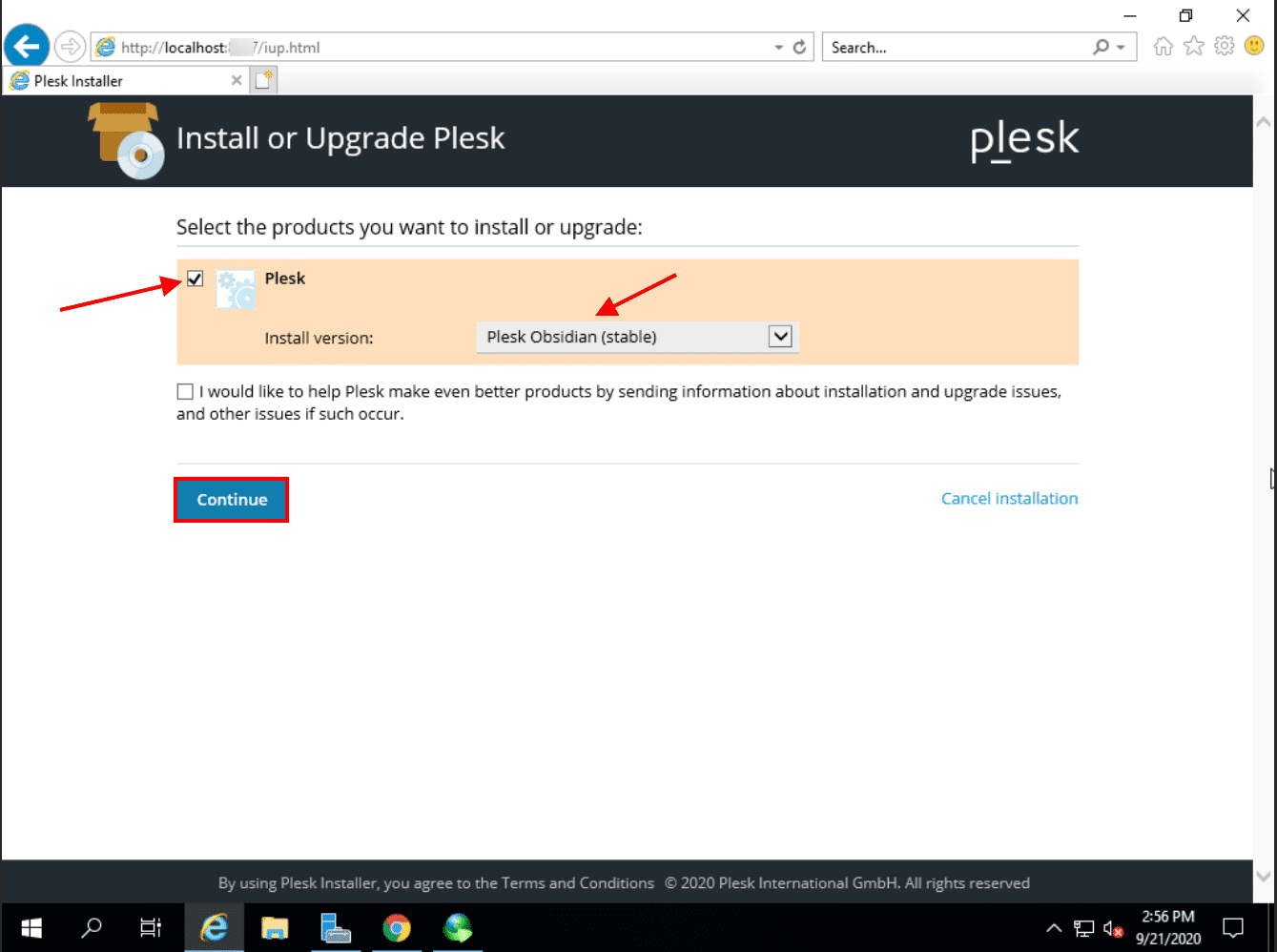
Select Plesk and click on Continue.
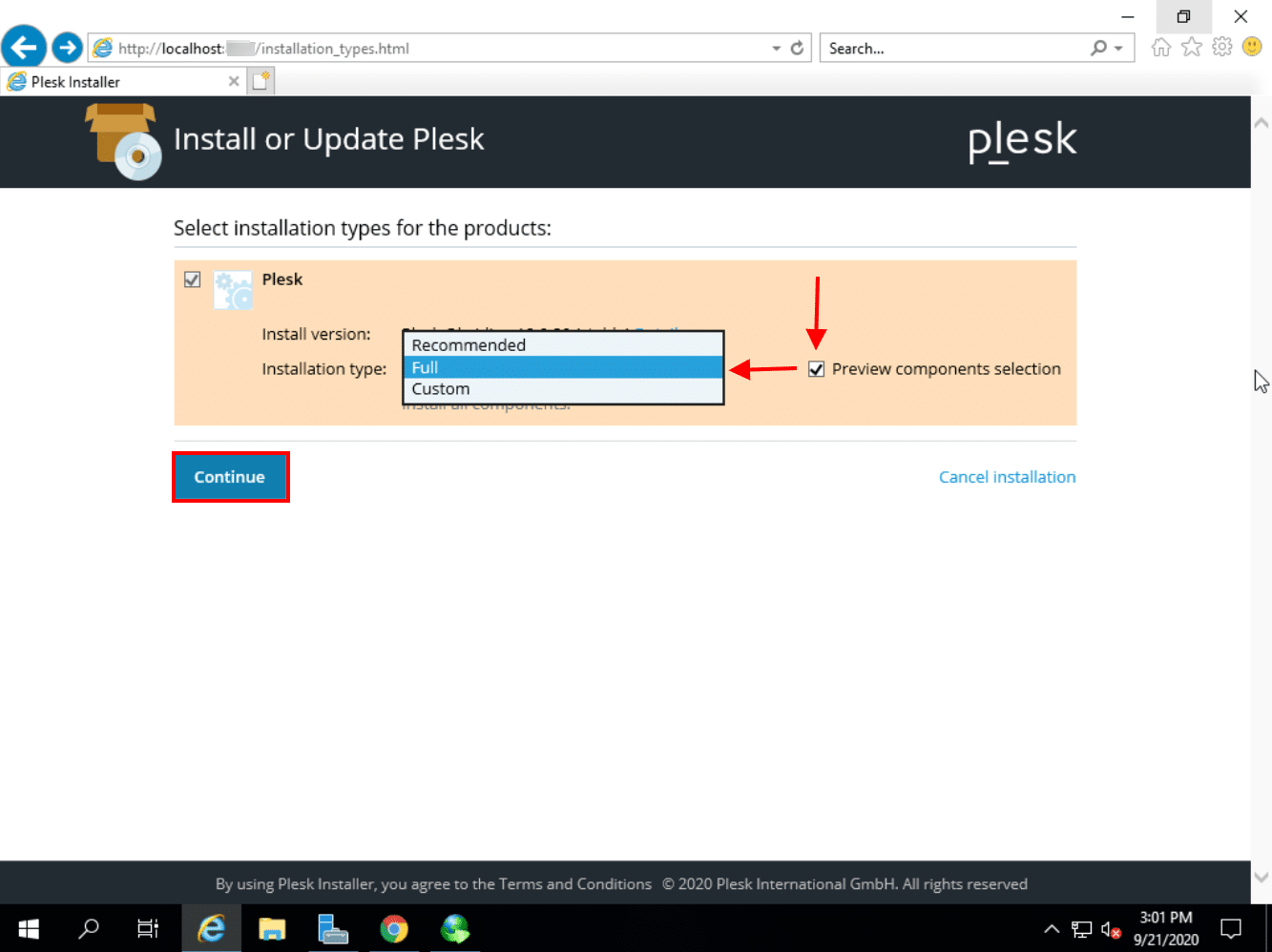
Then choose at Installation Type whether you want the Recommended version, the Full version or if you want to make a Custom version. If you have made a choice, click on Continue.
The Full version contains: Plesk, AWStats, MailEnable Standard Edition, BIND DNS Server, Microsoft DNS Server, SpamAssassin, MySQL ODBC 3.51 driver, phpMyAdmin, myLittleAdmin, Webalizer, Horde webmail, Plesk Premium Anti-Virus, SEO Toolkit, SSL Itl, Repair Kit, PHP Composer, Advanced Monitoring, Node.js hosting features (Node.js, Node.js IIS module, and Node.js Engine) and Microsoft ASP.NET Core hosting features.
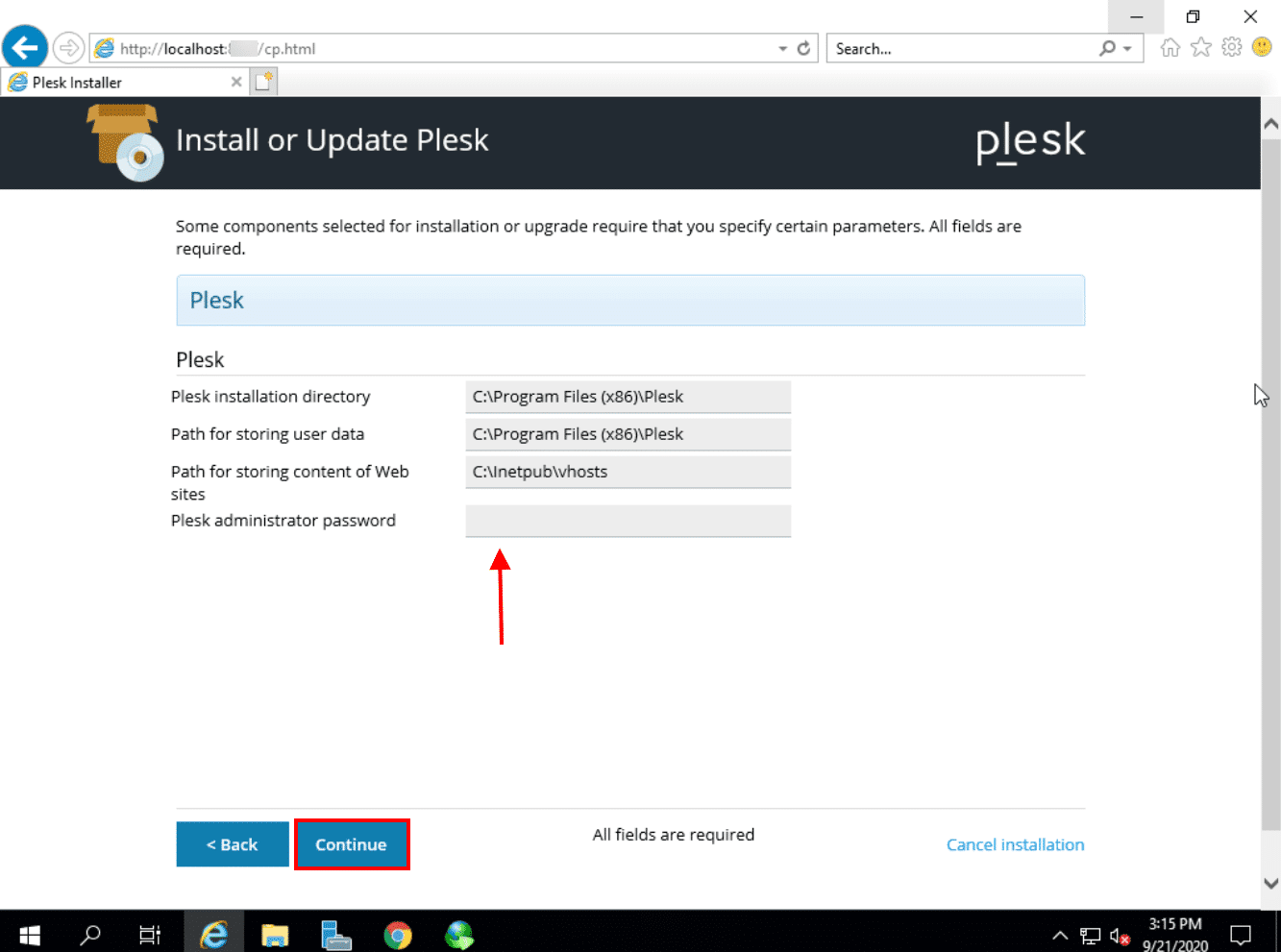
In the next window, choose your administrator password. Make sure to remember it. After you’ve chosen a password, click on Continue.
The installation will now begin. This may take a while.
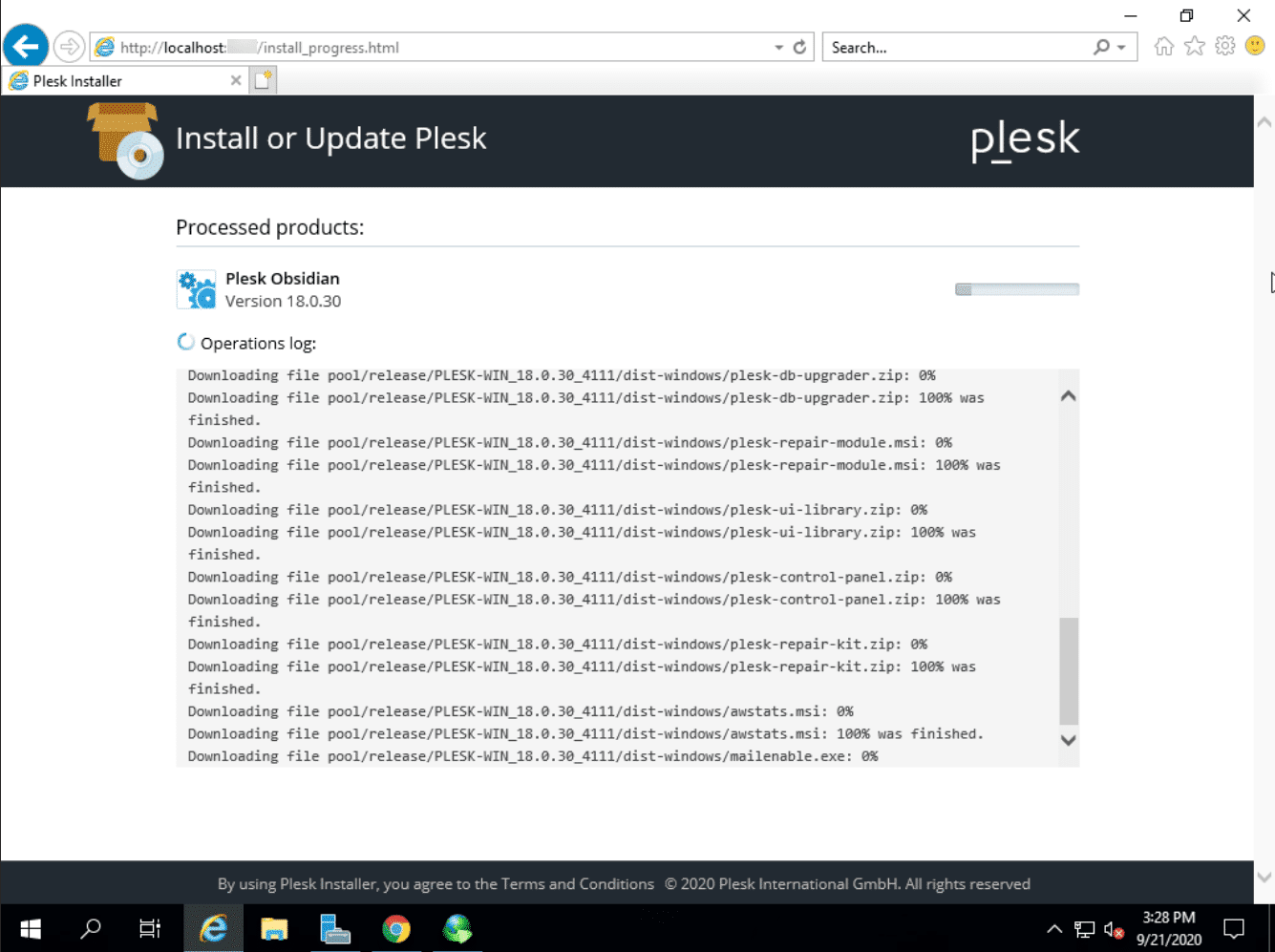
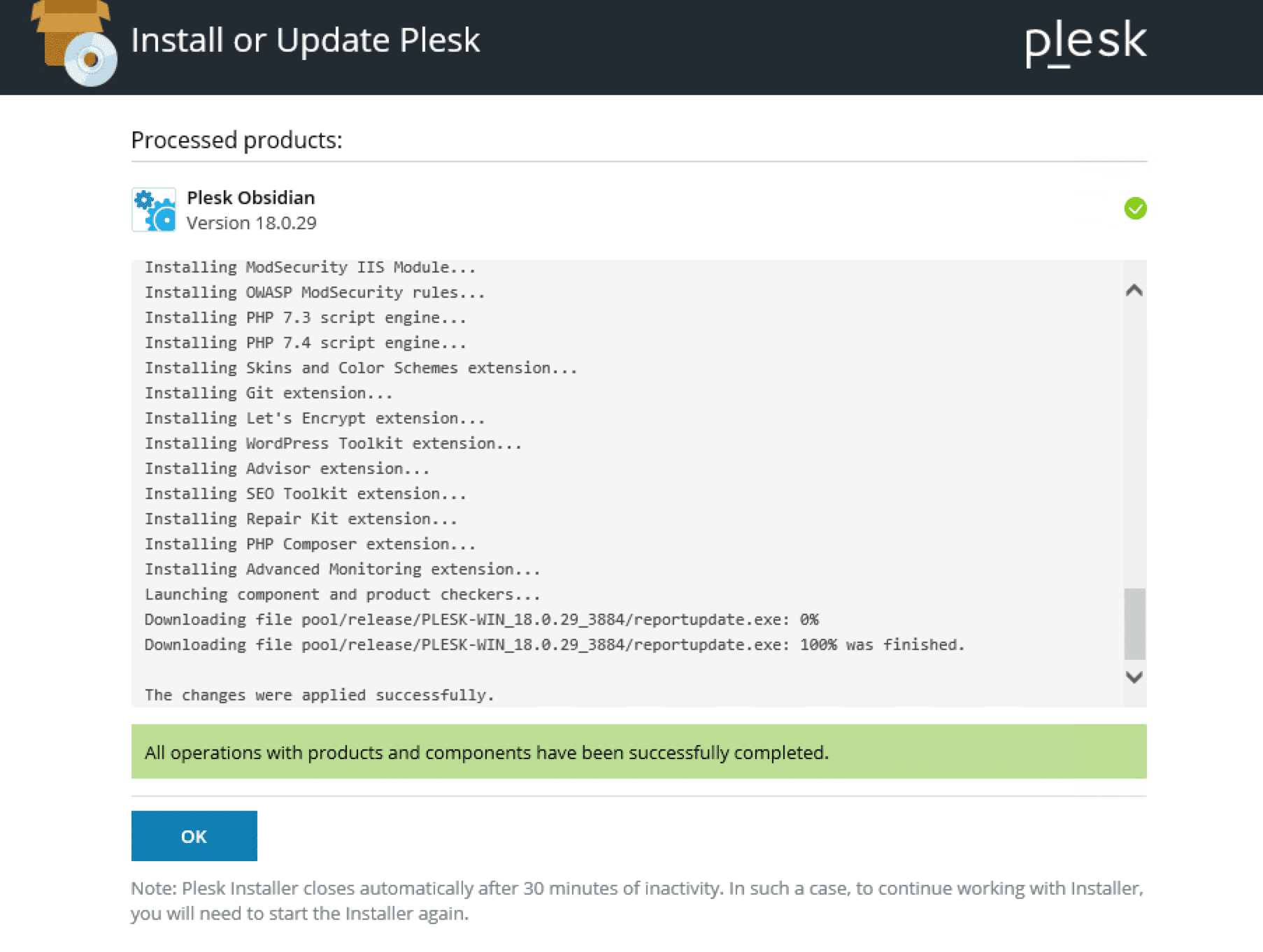
After the installation is finished, click on Ok.
Conclusion
Congratulations, you have installed Plesk on your Windows Server.