
How to install Python on Webuzo Control Panel?
Installing Python on a Webuzo Control Panel typically involves a few steps. Here’s a general guide:
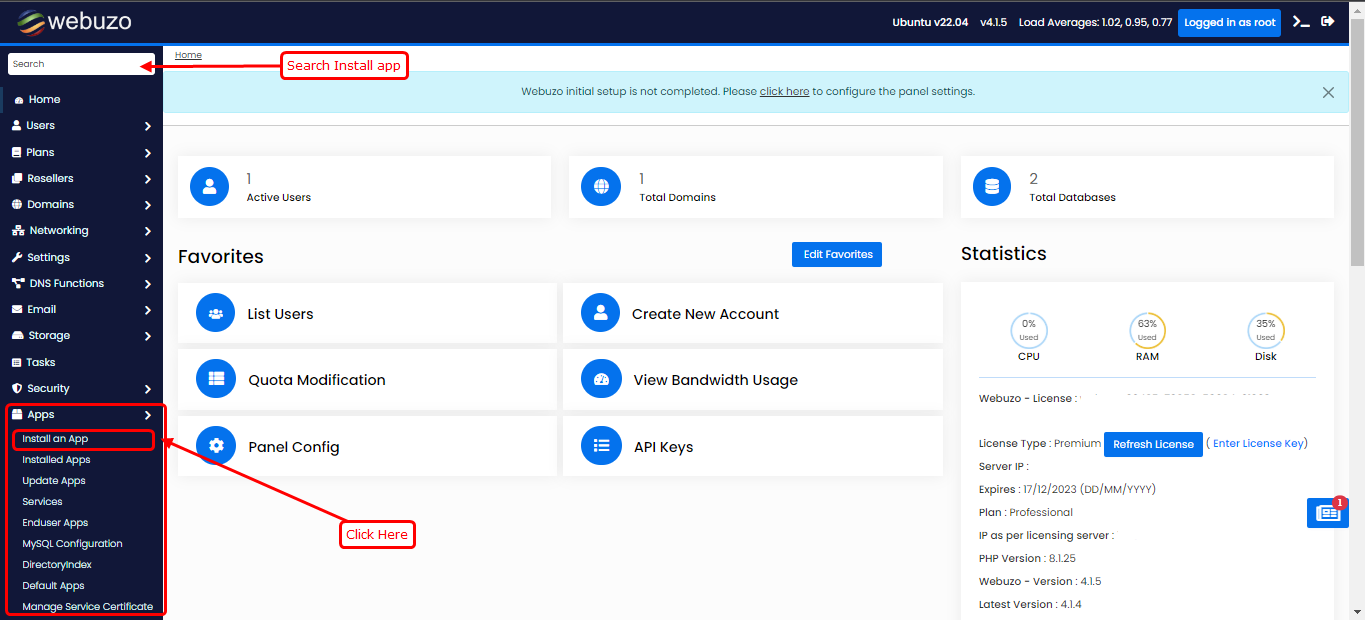
- Accessing Webuzo Control Panel: Log in to your Webuzo Control Panel using your credentials.
- Navigate to Installers: Look for the “Softaculous Apps Installer” section. This is where you can find various applications to install, including Python.
- Search for Python: In the Softaculous interface, you can search for Python. Use the search bar to find Python.
- Select Python: Once you find Python, click on it to proceed with the installation.
-
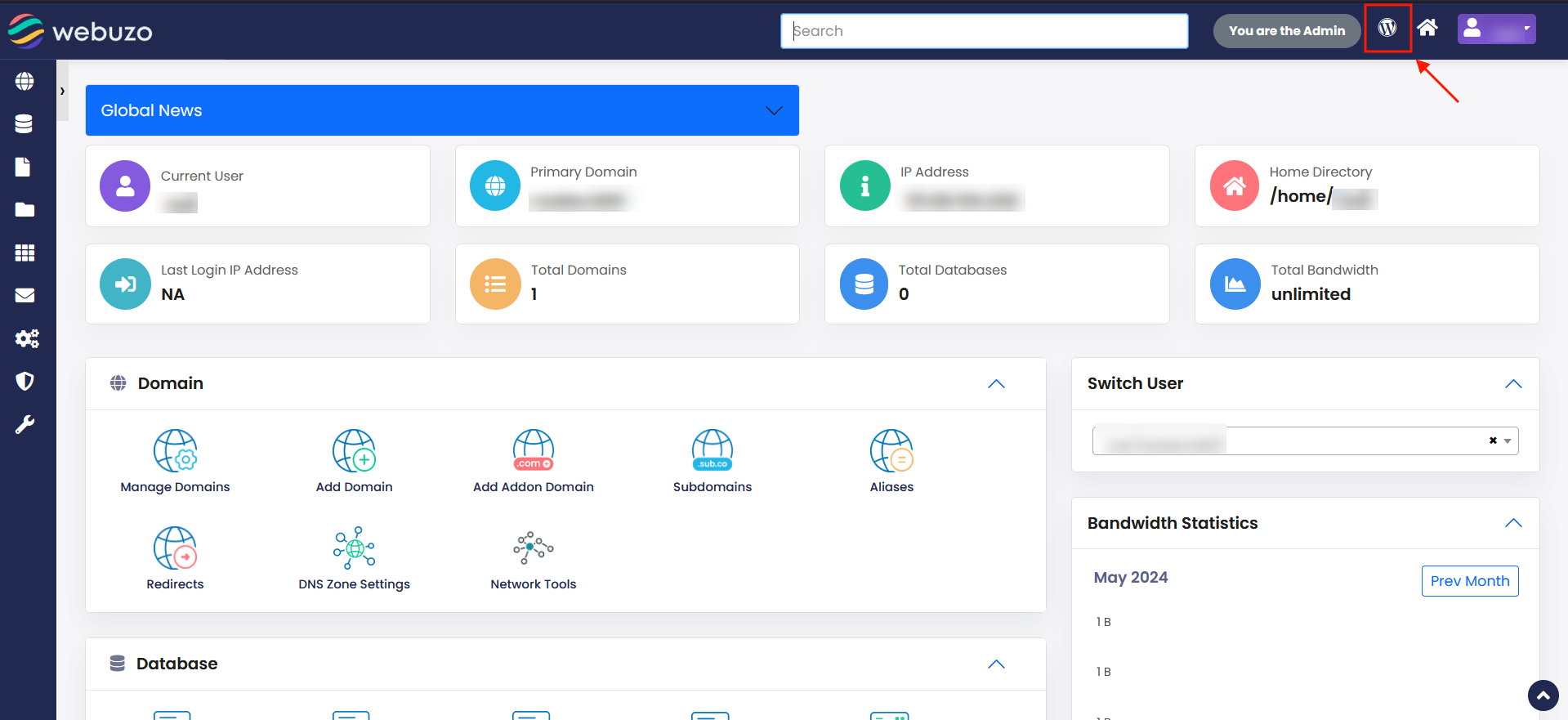
How to install Python on Webuzo Control Panel? Choose Version: You may be presented with options for different Python versions. Select the version you want to install. It’s advisable to choose the latest stable version available.
- Configure Installation: Some installations might allow you to configure certain settings. Review these settings and configure them according to your requirements.
- Start Installation: After configuring, proceed with the installation process. Click on the “Install” button or a similar option to begin the installation.
- Wait for Installation to Complete: The installation process may take a few minutes. Wait for it to complete. You might see a progress bar indicating the installation status.
- Confirmation: Once the installation is finished, you should receive a confirmation message indicating that Python has been successfully installed.
- Verification: Verify the installation by accessing Python through the command line interface or by creating a simple Python script and executing it through your web server.