
Website Migration: From CWP to cPanel
Introduction
Website Migration: From CWP to cPanel – Migrating your website from CWP to cPanel can seem daunting, but with the right steps, it can be a smooth process. In this guide, we’ll walk you through the entire migration process, ensuring minimal downtime and data loss.
Why Migrate?
- Enhanced Features: cPanel offers a more user-friendly interface and additional features.
- Support and Community: cPanel has a larger support community, making troubleshooting easier.
- Improved Security: cPanel often provides more robust security options.
Website Migration: From CWP to cPanel
Prerequisites
- Access to both CWP and cPanel accounts.
- A backup of your website files and databases.
- Basic knowledge of FTP/SFTP and database management.
Website migration from CWP to cPanel involves a series of steps to move a website from a CWP server to a cPanel server:
Allow server IPs through firewall: Allow the destination CWP server’s IP in the cPanel server’s firewall.
Create connection: Generate an API token in WHM.
Select accounts to migrate: View the remote server details, and select the accounts and packages to migrate.
Start migration: Initiate the migration process and monitor the progress.
Verify migration: Log into the CWP server and check the migrated accounts.
Step-by-Step Migration Process
Step 1: Backup Your Website
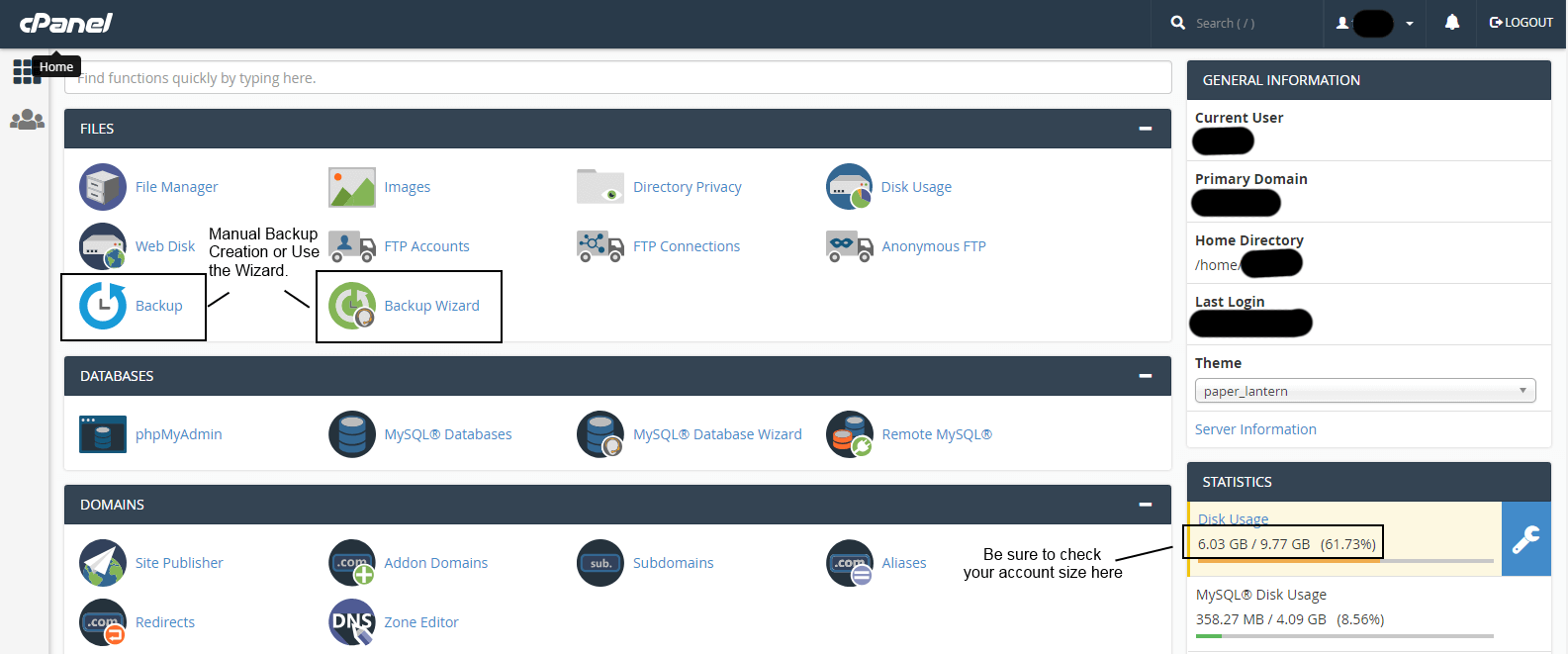
- Files:
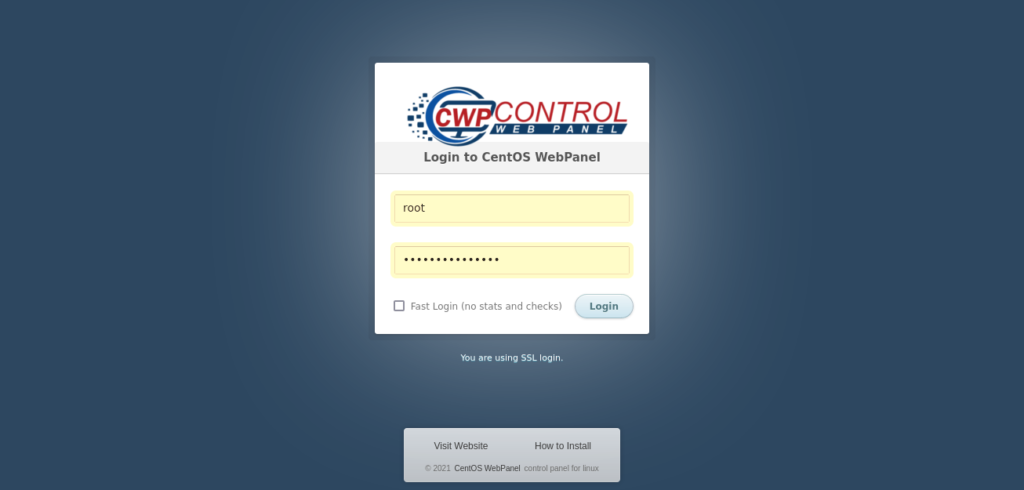
- Log in to your CWP account.
- Use the File Manager or FTP to download all website files.
- Ensure you get the
.htaccessfile and any other hidden files.
- Databases:
- Navigate to the MySQL Databases section in CWP.
- Export each database using phpMyAdmin or a similar tool.
- Save the SQL files securely.
Step 2: Set Up Your cPanel Account
- Create a New cPanel Account: If you haven’t already, create a new account on your cPanel server.
- Configure Domain: Point your domain to the new server (this can be done through your domain registrar).
Step 3: Upload Your Files to cPanel
- Using File Manager:
- Log in to cPanel.
- Go to the File Manager.
- Upload your website files to the
public_htmldirectory.
- Using FTP/SFTP:
- Connect to your cPanel account using an FTP client (like FileZilla).
- Transfer your website files to the
public_htmldirectory.
Step 4: Import Your Databases
- Create Databases:
- In cPanel, navigate to the MySQL Databases section.
- Create new databases for each of the databases you exported from CWP.
- Create corresponding MySQL users and assign them to the databases with all privileges.
- Import SQL Files:
- Go to phpMyAdmin in cPanel.
- Select the newly created database.
- Click on the “Import” tab and upload the SQL file you exported earlier.
Step 5: Update Configuration Files
- If your website uses a configuration file (like
wp-config.phpfor WordPress), update the database credentials to match the new database settings in cPanel.
Step 6: Test Your Website
- Before updating the DNS settings, access your website via the temporary URL provided by cPanel or through the hosts file modification on your local machine.
- Check all functionalities, links, and forms to ensure everything is working properly.
Step 7: Update DNS Records
- Once you’re satisfied that everything is working, update your domain’s DNS records to point to the new cPanel server.
- This can take some time to propagate, usually up to 48 hours.
Step 8: Final Checks
- After propagation, perform a final check on your website.
- Monitor error logs in cPanel for any issues that might arise.
- Ensure that email accounts (if any) are also set up in cPanel.
Troubleshooting Common Issues
- Missing Files: Double-check your backups and uploads.
- Database Connection Errors: Verify database names, usernames, and passwords in the configuration files.
- Broken Links: Update any internal links or hardcoded URLs in your website content.
Conclusion
Migrating from CWP to cPanel doesn’t have to be complicated. By following these steps, you can ensure a successful transition with minimal downtime. If you encounter any issues, don’t hesitate to reach out to the support communities for both CWP and cPanel.